Have you ever experienced a barred situation from your site? If yes, it’s frustrating when you don’t know the reason. Normally, users resolve 403 forbidden errors using an empty website directory within a specific page of permission errors.
The 403 forbidden error occurs when you set up to disallow directory browsing to restrict attackers from extracting the sensitive files. However, resolving this problem as soon as possible is evident because it causes a major loss in decreasing your traffic.
Let’s explore different methods to resolve the 403 errors.
Define 403 Forbidden Error
According to the internet engineering task force (IETF), 403 forbidden errors known as:
“The 403 Forbidden status code indicates that the server understood the request but refused to authorize it. A server wishes to make public why the request has been forbidden can describe that reason in the response payload (if any)”.
In simpler words, 403 Forbidden error means that the web server understands the request by a client, but a server is not accepting it.
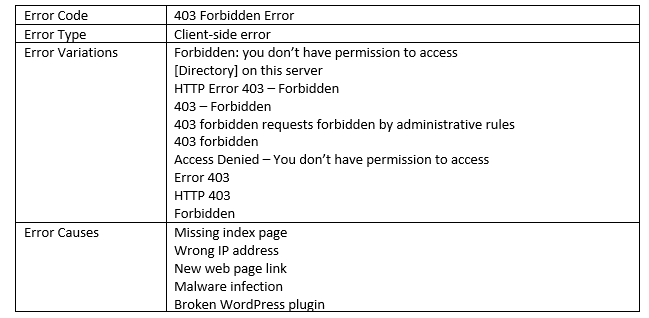
What are the main causes of the 403 Forbidden error?
- Corrupt .htaccess file
- Incorrect file permissions
Explore the variants of 403 forbidden error
There are multiple HTTP status codes with multiple variations to present the error code.
- You don’t have access to open the required document
- Not authorized to view the page
- Nginx
- Authorized or not authorized to view page
- Have no permission to open URL from this server
- Cannot access this address
- Access Denied on the server
If a client is on a Nginx server, the below-attached image shows the reality. 403 forbidden order shown when a user mentions ‘forbidden’ or ‘not allowed to access.
What are the essential ways to fix 403 forbidden errors on WordPress?
403 forbidden errors get fixed in WordPress in multiple ways; follow the steps below carefully.
- Returning from already running version
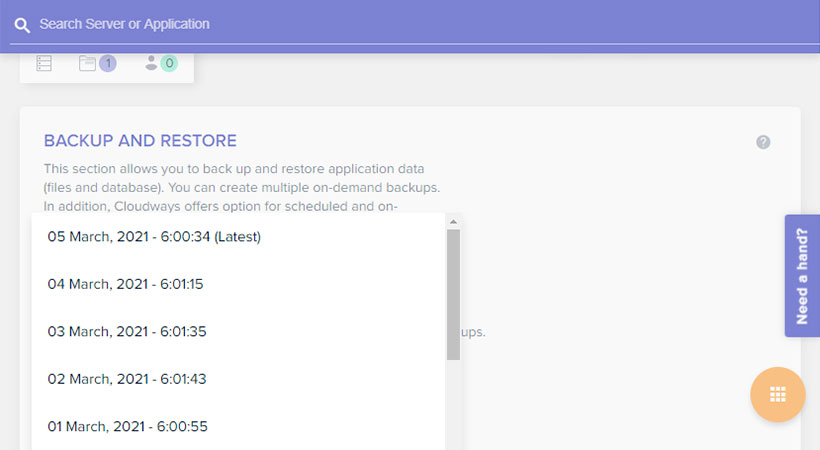
The easiest way to roll back and revert changes to the previous version is by providing hosting an application backup.
For example, if your website runs smoothly on March 4th but stops on March 5th.
Below is the attachment of this issue.
- Check file permissions
There are multiple files in WordPress that demand access permissions, and if it fails, WordPress will show you a 403 forbidden error because it presents you don’t having a requested file.
- Utilize FTP manager to connect with WordPress website
- Open public_html, and find the various file permissions
- Locate the root folder
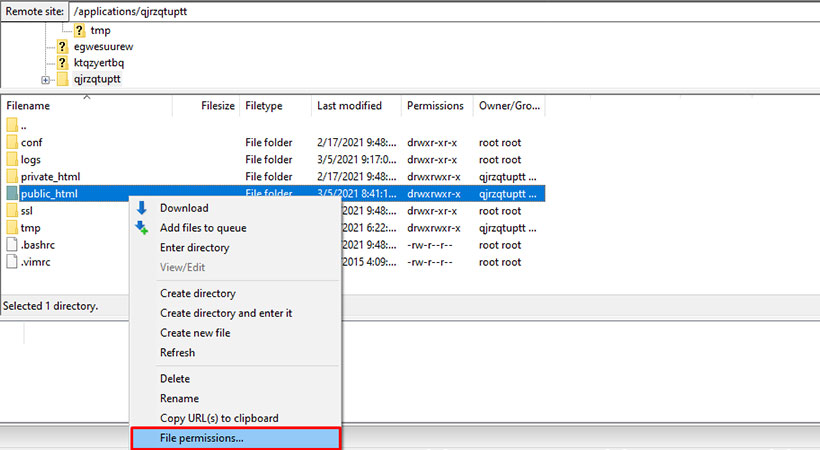
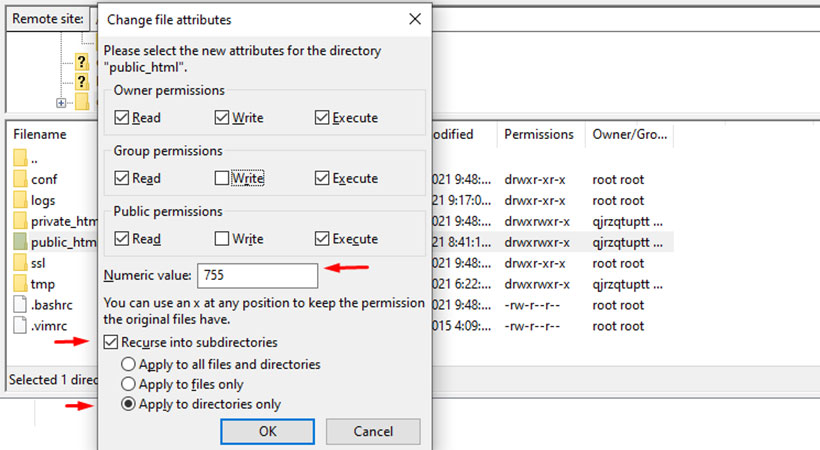
Set the value 743 to 755 in the permission dialog box and select the option that says, ‘apply to directories only.
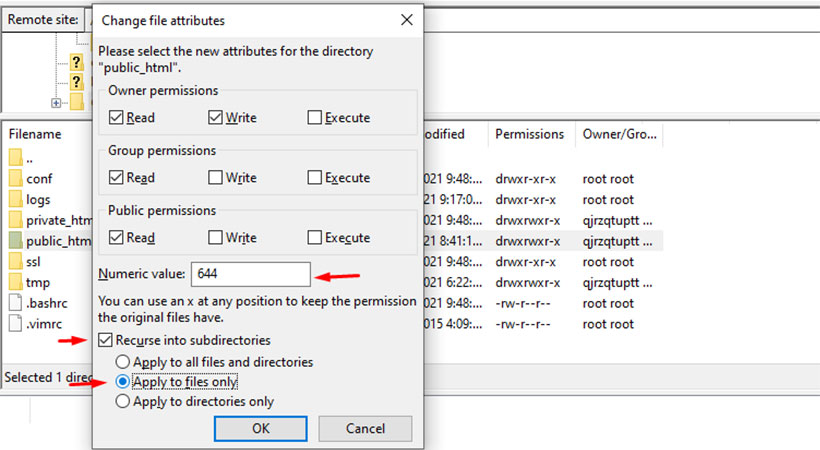
You can repeat this information of numeric values between 644 and 639. Don’t forget the option of “Recurse into subdirectories > apply to files only.”
It is suggested to refresh the page and inspect whether 403 forbidden WordPress errors are fixed or not. If not, move to the next step.
- Delete your browsing cache
This one is easy to fix; the 403 forbidden error can be resolved through the browser cache. Delete the browser cache and cookies and visit your website on Incognito mode to inspect your issue.
- Inspect .htaccess File
The major reason behind the 403 forbidden WordPress error arises from a corrupted .htaccess file. FTO manager makes it easier to fix a corrupt .htaccess file. Initially, log in to an FTP server, and download the .htaccess file in the public_html folder.
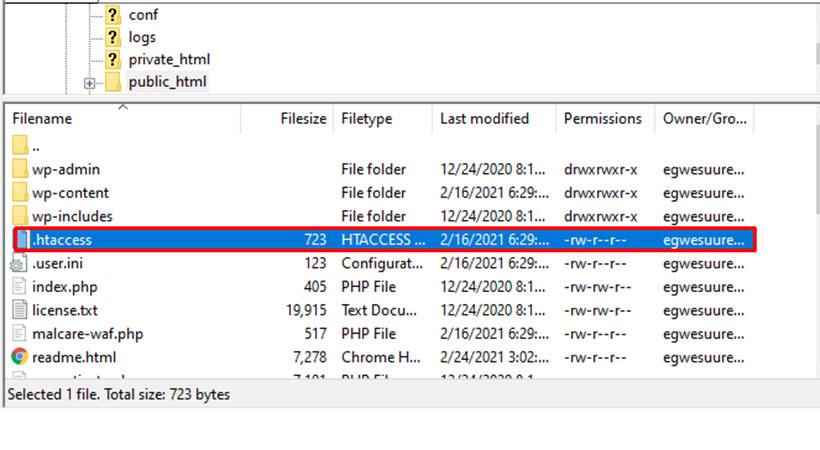
After opening the .htaccess file, click download on your computer to secure yourself. After downloading it, you can delete the .htaccess file to check if it’s resolved or not.
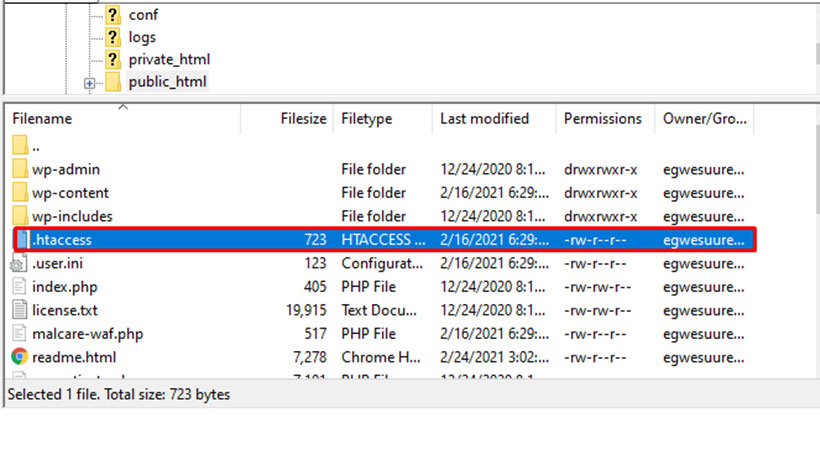
Reload your page and check if the error gets resolved because it moves to the next troubleshooting method that is pasted below.
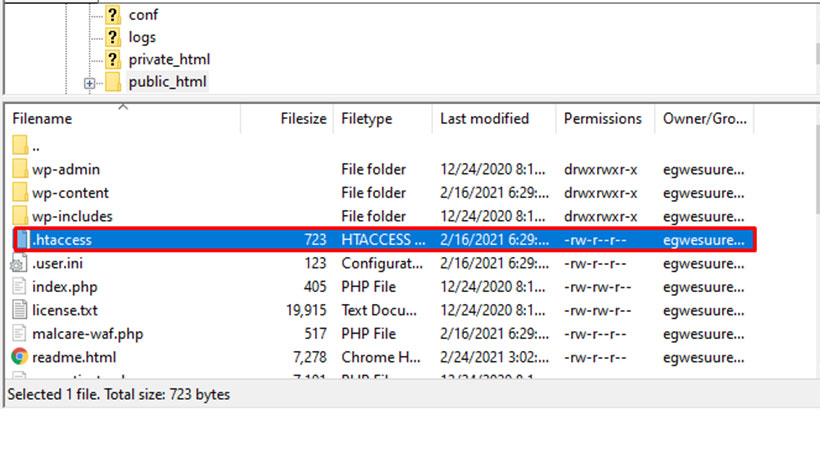
Upload the .htaccess file into the server.
- Disable all plugins
A broken plugin can cause 403 forbidden errors on WordPress sites, disable all plugins and inspect whether an issue is resolved or not. Disabling your plugins allows your WordPress files to use an FTP similar to FileZilla.
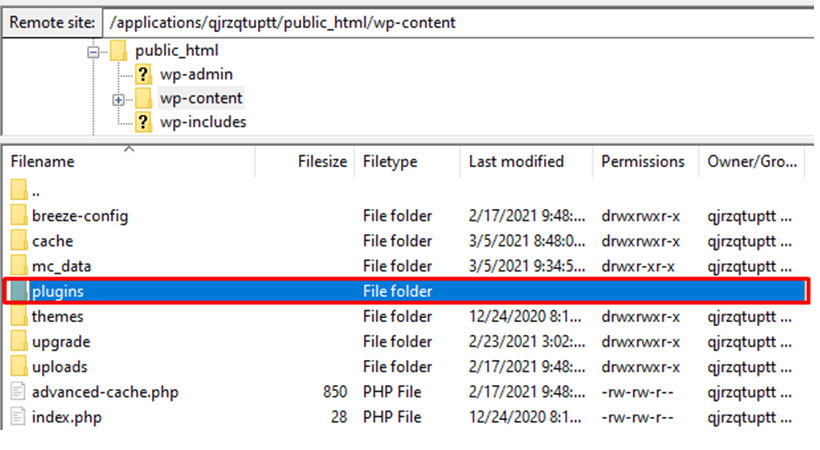
Click public_html > wp-content and rename the plugins folder.
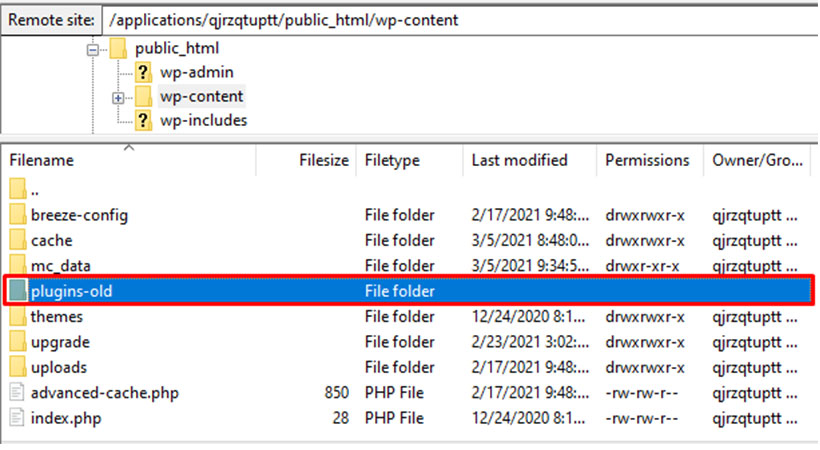
Revisit your browser; if the website begins working fine, the error is in plugins. Now, change your plugins-old folder name to plugins.
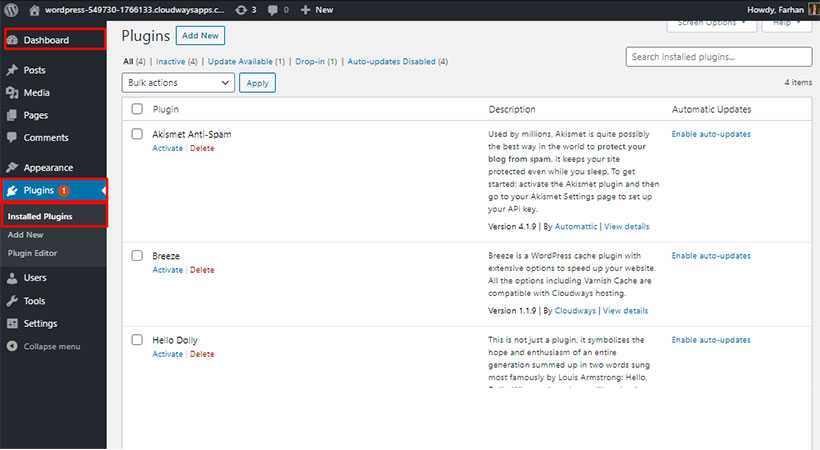
After changing the folder name, visit WordPress Dashboard > Plugins > Installed Plugins. Try to examine all plugins that are deactivated by default to activate each plugin and check out your website after activation.
The problematic plugin will be identified.
Conclusion
All the points mentioned above help resolve your 403 forbidden error problem. If you are still inquiring about any problem related to your website, reach us now. Or, if you have any better solution to this error, let us know in the comment section.
Learn The Top 5 Ways to Fix The 403 Forbidden Error in WordPress
403 forbidden error in wordpress
wordpress error
Meta Description: The 403 forbidden error occurs when you set up to disallow directory browsing to restrict attackers from extracting the sensitive files. Users resolve 403 forbidden errors using an empty website directory within a specific page. Read more.
Have you ever experienced a barred situation from your site? If yes, it’s frustrating when you don’t know the reason. Normally, users resolve 403 forbidden errors using an empty website directory within a specific page of permission errors.
The 403 forbidden error occurs when you set up to disallow directory browsing to restrict attackers from extracting the sensitive files. However, resolving this problem as soon as possible is evident because it causes a major loss in decreasing your traffic.
Let’s explore different methods to resolve the 403 errors.
Define 403 Forbidden Error
According to the internet engineering task force (IETF), 403 forbidden errors known as:
“The 403 Forbidden status code indicates that the server understood the request but refused to authorize it. A server wishes to make public why the request has been forbidden can describe that reason in the response payload (if any)”.
In simpler words, 403 Forbidden error means that the web server understands the request by a client, but a server is not accepting it.
What are the main causes of the 403 Forbidden error?
- Corrupt .htaccess file
- Incorrect file permissions
Explore the variants of 403 forbidden error
There are multiple HTTP status codes with multiple variations to present the error code.
- You don’t have access to open the required document
- Not authorized to view the page
- Nginx
- Authorized or not authorized to view page
- Have no permission to open URL from this server
- Cannot access this address
- Access Denied on the server
If a client is on a Nginx server, the below-attached image shows the reality. 403 forbidden order shown when a user mentions ‘forbidden’ or ‘not allowed to access.
What are the essential ways to fix 403 forbidden errors on WordPress?
403 forbidden errors get fixed in WordPress in multiple ways; follow the steps below carefully.
- Returning from already running version
The easiest way to roll back and revert changes to the previous version is by providing hosting an application backup.
For example, if your website runs smoothly on March 4th but stops on March 5th.
Below is the attachment of this issue.
- Check file permissions
There are multiple files in WordPress that demand access permissions, and if it fails, WordPress will show you a 403 forbidden error because it presents you don’t having a requested file.
- Utilize FTP manager to connect with WordPress website
- Open public_html, and find the various file permissions
- Locate the root folder
Set the value 743 to 755 in the permission dialog box and select the option that says, ‘apply to directories only.
You can repeat this information of numeric values between 644 and 639. Don’t forget the option of “Recurse into subdirectories > apply to files only.”
It is suggested to refresh the page and inspect whether 403 forbidden WordPress errors are fixed or not. If not, move to the next step.
- Delete your browsing cache
This one is easy to fix; the 403 forbidden error can be resolved through the browser cache. Delete the browser cache and cookies and visit your website on Incognito mode to inspect your issue.
- Inspect .htaccess File
The major reason behind the 403 forbidden WordPress error arises from a corrupted .htaccess file. FTO manager makes it easier to fix a corrupt .htaccess file. Initially, log in to an FTP server, and download the .htaccess file in the public_html folder.
After opening the .htaccess file, click download on your computer to secure yourself. After downloading it, you can delete the .htaccess file to check if it’s resolved or not.
Reload your page and check if the error gets resolved because it moves to the next troubleshooting method that is pasted below.
Upload the .htaccess file into the server.
- Disable all plugins
A broken plugin can cause 403 forbidden errors on WordPress sites, disable all plugins and inspect whether an issue is resolved or not. Disabling your plugins allows your WordPress files to use an FTP similar to FileZilla.
Click public_html > wp-content and rename the plugins folder.
Revisit your browser; if the website begins working fine, the error is in plugins. Now, change your plugins-old folder name to plugins.
After changing the folder name, visit WordPress Dashboard > Plugins > Installed Plugins. Try to examine all plugins that are deactivated by default to activate each plugin and check out your website after activation.
The problematic plugin will be identified.
Conclusion
All the points mentioned above help resolve your 403 forbidden error problem. If you are still inquiring about any problem related to your website, reach us now. Or, if you have any better solution to this error, let us know in the comment section.
Written by
Jalees